How to Transfer an App to Another Apple Developer Account
Apple asks for two pieces of information and no receipts. The work is in what you have to take apart before it will let you start, and in the handful of things that quietly stop working afterwards.
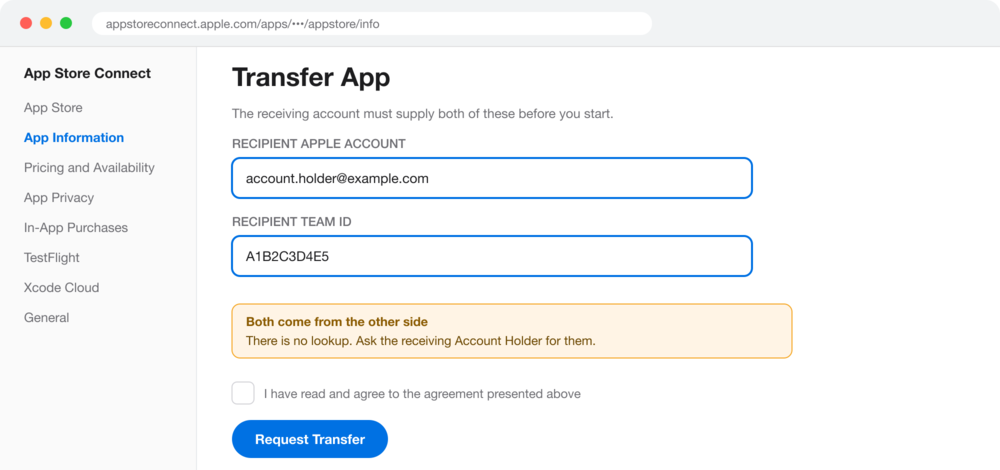
Apple's transfer form asks for two things: the recipient's Apple Account and their Team ID. There is no payment receipt to hunt down and no reference number to find. Submit it, the other side accepts, and the app moves with its reviews, ratings, App ID and Bundle ID intact.
If you are moving a product between companies you are probably moving both stores. The Google Play side is a different shape of problem, built around one number from an old payment receipt. This is the Apple half.
What makes an app ineligible?
Check this before you promise anyone a date. Apple refuses the transfer outright if any of the following is true, and some take days to resolve.
The app has never been released. At least one version must have gone live on the App Store.
Anything is mid-review. Processing for Distribution, Waiting for Review, In Review, Accepted, Pending Developer Release or Pending Apple Release all block it.
The app is on pre-order in any country or region.
Either account is in a pending or changing state, or has not accepted the latest paid and free agreements.
An In-App Purchase product ID already exists in the recipient's account. Two apps in one account cannot share a product ID, so a clash has to be resolved on their side first.
It is an Apple Arcade app. Those cannot be transferred under any circumstances.
Mac apps have an extra rule: a sandboxed Mac app sharing an Application Group Container Directory with other Mac apps cannot be transferred. If the app is Mac Catalyst and not a universal purchase, the iPad app goes first and the Mac app follows.
What has to be switched off first?
Three things, and the first takes the longest. None of them can be done after the request is submitted.
TestFlight has to be completely torn down: all builds removed, all testers removed, and every field under Test Information cleared for every localisation. Xcode Cloud data has to be deleted from the Xcode Cloud tab in Settings. And if the app sells auto-renewable subscriptions, generate an app-specific shared secret and hand it to the receiving Account Holder before you begin, so their servers can keep validating receipts through the changeover.
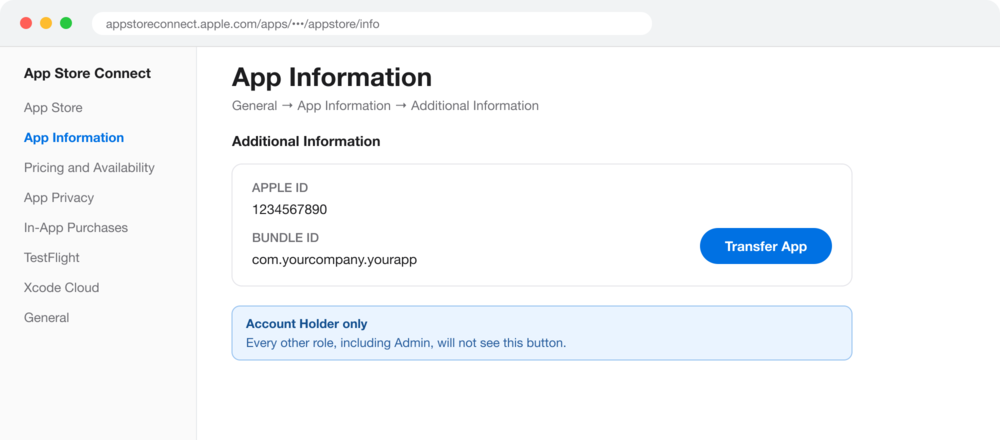
The button lives under App Information, and only the Account Holder can see it. Admins cannot.
Back up everything you want a record of before starting, because the app leaves your account entirely. Metadata, pricing, availability dates, sales and download history. Nominations and app bundle history in particular cannot be retrieved afterwards.
How do you submit the transfer?
App Information, then Additional Information, then Transfer App. You may be asked for a two-factor code. Apple then checks the eligibility criteria and only lets you continue if they all pass.
Both values belong to the receiving side. There is no lookup, so ask for them in advance.
Enter the recipient Account Holder's Apple Account and their Team ID, accept the agreement, and request the transfer. It then sits waiting for the other side.
How long does it take?
As long as the recipient takes, up to 60 days. Unlike Google, Apple does not review the request. There is no queue and no approval step. The app moves the moment the other side accepts.
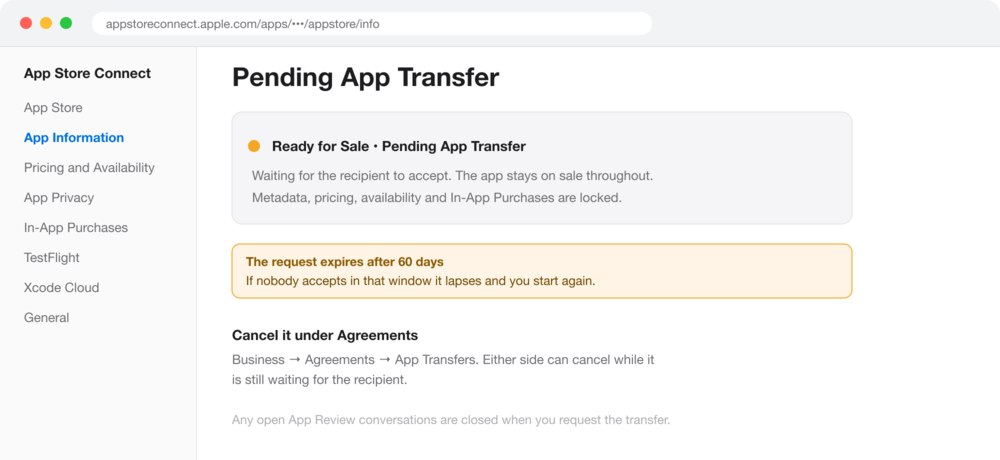
The app stays on sale while pending, but you cannot change metadata, pricing, availability or In-App Purchases.
If nobody accepts within 60 days the request lapses and you start again. Either side can cancel while it is still waiting, under Business, then Agreements, then App Transfers. Submitting the request closes any open App Review conversations, so finish those first.
What usually goes wrong?
The transfer itself rarely fails. What catches people is the collateral damage, most of which surfaces days later on the first update rather than on the day the app moves.
Problem 01
Promo codes are gone permanently
Once an app has been transferred, new promo codes cannot be generated for it again. Not by you, and not by the new owner either. Codes already issued keep working until they expire.
This is the only part of the process with no way back, and it sits in Apple's documentation rather than appearing as a warning anywhere in the transfer flow.
What to do: Generate and store every code you might need before you start. After acceptance the option is gone for good.
Problem 02
TestFlight has to be dismantled
Apple will not move an app with beta testing still switched on, and turning it off means more than pausing it. Every build has to be removed, every tester removed, and every field under Test Information cleared.
Test Information is per localisation, so an app shipping in six languages has six sets of fields to empty, and missing one keeps the app ineligible.
What to do: Clear it before anything else. It is the slowest prerequisite and the one most likely to stall a transfer.
Problem 03
A shared CloudKit container breaks siblings
If the app shares a CloudKit container with other apps on your account, those other apps lose the ability to read or write that container once the transfer lands.
The damage is to apps that are not moving. They keep running until their next update, then quietly stop reaching data they have always had.
What to do: Check container sharing before you commit. If other apps depend on it, the data has to be separated first.
Problem 04
Keychain sharing logs everyone out
Keychain sharing survives the transfer itself but not the next update, because the keychain group carries the old Team ID and the new build is signed by a different one.
The visible result is that every user is signed out at once, on an update that otherwise looks routine, with no explanation in the release notes.
What to do: Rebuild the keychain group with the recipient's Team ID, and tell users in the release notes to expect a sign-in.
What does not transfer?
Reviews, ratings, the App ID, the Bundle ID, iCloud and CloudKit containers, webhooks and the app-specific shared secret all move across. These do not:
Promo codes. Gone permanently, as above.
Apple Pay merchant IDs. The recipient creates a new one and includes it in the next update.
Game Center configuration. Matchmaking must be recreated, apps are removed from any Game Center group, and merged leaderboards lose their prefix and revert to their original IDs.
App Analytics for the previous owner. You lose access on transfer; the recipient gains history back to April 2015.
Sales and payments after the transfer date. You keep everything before it and nothing after.
Nominations and app bundle history. Document these yourself first.
APNs certificates are a halfway case. They stay valid until they expire, and only then does the recipient need to generate new ones, which makes this the failure that arrives months later with no obvious cause. Sign in with Apple needs transfer identifiers generated for every user before the move, and Wallet passes have to be reissued with new identifiers so they are signed by the recipient's certificates.
"Nothing about the form is difficult. The work is knowing which six things to take apart first, and which one you cannot put back."
How is this different from a Google Play transfer?
Google gates on paperwork, Apple gates on state. The two processes fail in opposite ways, which matters when you are running both at once.
Google asks for the registration transaction ID of both accounts, a number from a $25 payment made whenever each account was created, and an otherwise perfect request will bounce if that number still carries its prefix. Then a human reviews it within two business days. Apple asks for nothing historical, reviews nothing, and instead refuses to start until the app itself is in an acceptable state.
In practice the Apple side is more work and less waiting. Plan the teardown first, run both transfers in parallel, and expect the Play side to be the one still sitting in somebody's inbox.
App StoreApp TransferiOSGuide
J
We can run the transfer for you
Both stores, the paperwork, and the connected services relinked on the other side. You keep your reviews and your install base.